Home Geofence Setup: A Step-by-Step Guide for Families
Set up a home geofence that alerts you when kids, pets or parents arrive and leave: radius, permissions, testing and fixes for missed alerts.
Home Geofence Setup: A Step-by-Step Guide for Families
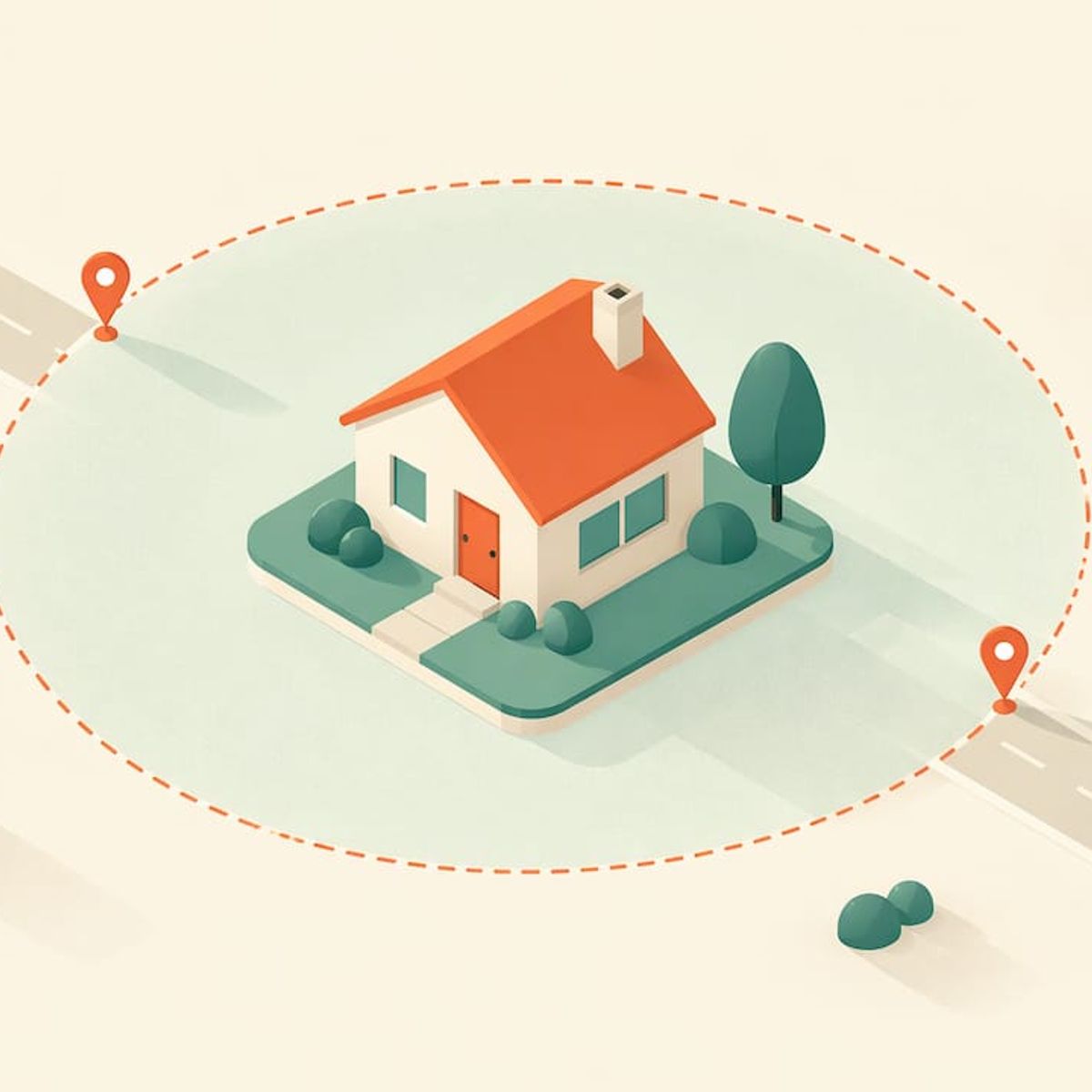
A home geofence is a virtual boundary drawn around your address. When a phone or GPS tracker crosses it, you get an alert: “arrived home” or “left home.” To set one up, pin your address on a map, size a circle around it (roughly 100 to 500 feet works for most houses), name the zone, choose who it applies to, and switch on both arrival and departure alerts. Then test it by walking out and back in. Most failed setups come down to two things: a radius that is too tight, and phone settings that let the operating system put the app to sleep. A dedicated GPS tracker with no monthly fee, like Kin One, takes the phone-settings problem off the table for the child, dog or grandparent who carries it.
Kinwatchdog
kinwatchdog.com
Know When Loved Ones Arrive
Kin One tracks kids, pets, and parents on one map, with real-time updates and no monthly fees for family location awareness.
TL;DR
- Pick a radius that matches your surroundings. City lots do well near 200 meters (650 feet), and rural homes can go up to 1,000 meters (3,300 feet), according to one smart-thermostat maker’s guidance.
- Keep the circle a little larger than the yard and away from busy roads, so passing cars and GPS drift do not set off false alerts.
- Phone-based geofences only work if location permission is “always” on and the app is not put to sleep by battery saving.
- Name each zone clearly, turn on both arrival and departure alerts, then test by walking out and back in.
- Kin One is a $99 one-time purchase with arrival and departure alerts, no monthly fees and up to five approved emergency contacts.
Table of Contents
- What a home geofence actually does
- Before you start: choose what carries the geofence
- Step 1: Pin the center on your front door, not your lot’s middle
- Step 2: Set the radius
- Step 3: Name the zone and pick who it covers
- Step 4: Turn on arrival and departure alerts
- Step 5: Fix the phone settings that silently break alerts
- Step 6: Test it before you rely on it
- Common problems and quick fixes
- Zones for kids, pets and parents
- Privacy: a home geofence should tell you less, not more
- When you leave home too: travel and unfamiliar places
- Why we built Kin One around this
- Get Kin One for your home zones
- FAQ
- Sources
What a home geofence actually does
A geofence is a boundary defined by location data. It can be built from GPS, Wi-Fi, Bluetooth or cellular signals, and crossing it can trigger a programmed action or an alert. A utility company’s explainer on home geofencing lists the family uses: alerts when children leave a safe zone, and pet geofences that notify you before a pet gets too far away or lost.
Smart-home gadgets use the same idea for convenience. Wirecutter explains that a platform builds a zone around your home from your phone’s signals, then switches between Home and Away modes as you cross it. That can lock the door and shut off the air conditioning when you leave, or turn on lights as you pull into the driveway.
For a family, the useful version is simpler. You want to know that:
- your kid got home from school without texting them;
- the dog is no longer in the yard;
- a parent with memory problems has not wandered past the end of the street.
That is a geofence with a person, pet or tracker attached to it, rather than a lightbulb.
Before you start: choose what carries the geofence
A geofence needs something that reports its location. You have two kinds of carrier.
A phone running an app. This works for adults and teens who always carry a phone. The catch is that the alert depends on the phone’s settings, battery and signal. A younger child may not have a phone at all, and a dog certainly will not.
A dedicated GPS tracker. The device reports its own position, so the alert does not depend on a child remembering to charge a phone or on a grandparent’s app permissions. Kin One is built for this: kids, pets and parents show on one map, and you get arrival and departure alerts. If you are tracking someone who does not carry a phone, or you want the alert to keep working when a phone dies, this is the carrier to choose. See our pages on trackers for kids, dogs and pets and seniors for how each fits.
One more point on cost. Many geofence tools sit behind a plan: Ring’s geofence reminders, for example, require a compatible Ring subscription. Kin One has no monthly fee. You pay $99 once, and lifetime network data is included. If you want the full picture of what a subscription pays for, our GPS tracker subscription cost guide lays it out.
Step 1: Pin the center on your front door, not your lot’s middle
Open the app’s geofence or safe zone screen and add a new zone. Search for your address or drop the pin by hand.
Check the pin against the satellite view. A pin that lands on the neighbor’s roof or the street in front puts the whole circle off-center, and your alerts will fire at the wrong moments. Put it on the part of the property people actually cross: the front door or the driveway for a house, the building entrance for an apartment.
A common mistake is setting several homes with one pin. If a child splits time between two households, give each address its own zone and name it clearly.
Step 2: Set the radius
This is the step that decides whether alerts feel useful or annoying. GPS is never exact. Phones and trackers can wander by several meters, and indoor readings drift more. If the circle hugs your house, a reading that jumps a few meters outside the edge will send you “left home” followed by “arrived home” while everyone is on the couch.
What the published guidance says:
- City and suburban homes: a boundary of about 200 meters (650 feet) is the starting point suggested in Mysa’s support documentation. It goes up to 1,000 meters (3,300 feet) in rural areas, and a larger boundary triggers earlier.
- Minimum size: a 2023 peer-reviewed study found that geofence sensitivity and precision depend on the radius, the environment, the operating system and user behavior. It also notes that Android documentation recommends a minimum radius of 100 to 150 meters for best results.
- Range some apps allow: TP-Link’s U.S. support FAQ says its geofence radius can be set from 100 meters (328 feet) to 2,000 meters (1.24 miles).
Here is a worked example. You live on a suburban street, and your kid walks home from a bus stop 400 feet away. A 150-foot circle will alert you only when your kid is practically at the door. A 650-foot circle will alert you as they turn onto your street, which gives you a heads-up. It also means “departure” fires a little after they leave the property rather than the second they step off the porch. Decide which matters more for that person. For “are they home yet?”, a bigger circle is a feature. For “did the dog get out of the yard?”, you want a tighter one, kept comfortably larger than the fence line.
Keep the edge off busy roads
Resideo’s support team advises keeping the geofence away from roads and highways you travel on. Set the radius so it catches only the routes that mean someone is really heading home or away. The same page notes that the radius the app shows is an approximation, because it varies with GPS accuracy. Think of the circle as a rough area, not a fence line.
If you want to know how close a tracker really gets, our guide to GPS tracker accuracy for U.S. families covers real-use ranges of 2 to 10 meters.
Step 3: Name the zone and pick who it covers
Give the geofence a name you will understand at a glance on a lock screen: “Home,” “Grandma’s house,” “School.” A vague name like “Zone 1” becomes a puzzle when three alerts come in at 3:30 p.m.
Then choose which people, pets or trackers it applies to. Be aware of one behavior with shared homes. Resideo’s documentation notes that when several people are assigned to a home geofence, the event triggers when the first person arrives and when the last person leaves. That suits a “someone is home” setting for a thermostat. For family safety, you usually want an alert per person, so set one up for each child, pet or parent you care about.
Step 4: Turn on arrival and departure alerts
A geofence has two directions, and each is its own alert. Switch on both unless you have a reason not to.
- Arrival answers “did they make it?” It is the one most parents use on school days.
- Departure answers “did they leave?” It matters most for pets near an open gate and for a senior who should not be out alone.
Pick where notifications go. If more than one adult wants them, set each adult’s phone separately: Ring notes, for example, that reminders go only to the mobile device where they were set. With Kin One, arrival and departure alerts are part of the device and app, and you can add up to five approved emergency contacts for the people who need to know when something is wrong.
Do not alert on everything. Ten zones with two alerts each is twenty chances a day to start ignoring your phone. Keep zones for places that matter (home, school, the grandparents’, the dog park) and read our guide on how to trim family GPS to a handful of active geofences.
Step 5: Fix the phone settings that silently break alerts
If your geofence runs on a phone, the app has to be allowed to know where the phone is at all times. This is where most “it never alerted me” stories come from.
Location permission set to always. Ring states that its geofence only works when the app’s location permission is set to “always on” on iOS or Android, and that on iOS 17 or later Precise Location must also be enabled. Resideo notes that Android users must grant the “access precise location” permission. The wording differs from app to app, but “while using the app” is generally not enough for a boundary that has to be watched in the background.
Battery saving off for the app. TP-Link’s troubleshooting list covers the same ground: enable Precise Location and the always-allow permission, remove the app from the Sleeping Apps list, turn off power-saving mode, and disable Mock Location. Aggressive battery settings are the usual reason an alert arrives twenty minutes late or not at all.
Notifications allowed. Check that the app can send alerts, including on the lock screen, and that no Focus or Do Not Disturb mode is muting them.
This is a long checklist to maintain across every phone in a family, and an operating system update can quietly reset any item on it. A dedicated tracker removes the phone from the chain for the person wearing it. You still need notifications on for yourself, the person receiving the alert.
Step 6: Test it before you rely on it
Don’t trust a geofence you have not watched fire. A five-minute test:
- Make sure the tracker or phone is charged and has a clear sky view.
- Walk or drive out past the edge of the circle. Use the map to know where that is.
- Wait a minute or two. Departure alerts are not instant, since the system checks location at intervals.
- Walk back in and confirm the arrival alert.
- Note how far past the line you were when each alert fired. If it was too far, or too early, change the radius and test again.
Test again after a phone update, after changing phones, and at least once from the actual route a child walks home. If a test fails, our GPS tracker troubleshooting guide shows how to tell a positioning problem (where the device thinks it is) from a reporting problem (when it tells you).
Common problems and quick fixes
SymptomLikely causeFix
Repeated “left” and “arrived” alerts while at home
Radius too small, GPS drift near the edge
Enlarge the circle so it clearly exceeds the property
Alert fires when driving past
Edge touches a road
Shrink or shift the circle away from the road
Alert is late or never arrives
Background location blocked or app sleeping
Set permission to always, turn off battery saving for the app
Alert fires well before arrival
Radius very large
Reduce it; larger circles trigger earlier
No alert for one family member
Zone not assigned to that person or tracker
Add each person, pet or device to the zone
Alerts stop after a phone update
Permissions reset
Recheck location and notification settings
Zones for kids, pets and parents
The same circle works differently for each person.
Kids. Pair a home zone with a school zone and one for a regular after-school stop. Arrival alerts are the point. If your child’s trip crosses town, our page on a kids GPS tracker with geofencing goes deeper on arrive-and-leave alerts.
Pets. Keep the circle tight but larger than your yard, and expect that a dog sprinting along the fence can nudge the edge. A departure alert tells you the dog is off the property while there is still time to find it nearby.
Parents and grandparents. The aim is gentle awareness, not surveillance. A home zone with a departure alert and a short list of emergency contacts is enough. Our guide on sharing location with grandparents when phones fail covers ways to do it when a phone is not dependable.
Rural properties. A bigger radius suits acreage, but cell coverage thins out past town. Check what works in rural GPS tracking coverage before relying on a single alert.
Privacy: a home geofence should tell you less, not more
Geofencing can be gentler than constant tracking. The 2023 study notes that it can ease privacy and battery concerns, and that when the place of interest is home, no location data need be sent anywhere else. A good rule for families is to alert on boundaries and avoid following every move.
With Kin One, privacy controls include route deletion and user-managed visibility, and the device has no audio monitoring or onboard camera. Whoever you track should know about the zone and what it reports. Before you buy any tracker, our checklist of privacy controls to look for is worth a few minutes.
When you leave home too: travel and unfamiliar places
A home geofence is the everyday case. On trips, the same idea carries over: drop a temporary zone around the hotel or rental, and keep your itinerary and documents organized in one place. A roundup of travel safety apps and how to pair them shows what each type does, so your tracker’s alerts sit alongside, not instead of, the rest of your trip plan.
Why we built Kin One around this
We started from a simple observation: most families want one thing from location tech. They want to know that the people and pets they love are where they should be, without paying a fee every month for the privilege.
A geofence is the heart of that. When it works, you stop checking. You get a quiet notification that your kid is home, and you carry on. When it does not, because a phone slept or a plan lapsed, it teaches you to distrust the whole idea.
That is why Kin One is a dedicated device, with kids, pets and parents on one map, arrival and departure alerts, and lifetime network data included in a single payment. We left out audio monitoring and onboard cameras on purpose, because a family safety tool should show where someone is, not listen in.
Set your zones generously, keep them few, test them once, and let the alerts do their job.
Louis
Get Kin One for your home zones
Kin One is a one-time $99 purchase: a GPS tracker and app that put kids, pets and parents on one map, with live updates, arrival and departure alerts, up to five approved emergency contacts, no monthly fees and a two-year warranty. You set the home zone once, and the alerts follow the person or pet who carries it, not the phone they may have forgotten to charge.
See the details and order on the Kin One product page, or read how it works as a family GPS tracker.
FAQ
How big should a home geofence be?
For a typical city or suburban home, start around 200 meters (650 feet), which is what one manufacturer suggests, and go larger in rural areas. Stay above the 100 to 150 meter minimum that the 2023 study reports for Android. Then test and adjust, because larger circles fire earlier.
Why did my geofence alert come late or not at all?
The usual cause is that the phone’s operating system limited the app in the background. Set location to always allow, turn on Precise Location, and take the app off any sleeping or battery-saving list, as the TP-Link troubleshooting steps describe. A radius that is too small can also cause missed or repeated alerts.
Do I need a subscription for home geofencing?
It depends on the product. Some security systems tie geofence reminders to a paid plan. Kin One has no monthly fee: you pay $99 once and lifetime network data is included.
Can a geofence track my child or dog without a phone?
Yes, if the carrier is a GPS tracker rather than a phone. A tracker reports its own location, so a child without a phone or a dog can still trigger arrival and departure alerts. Kin One is made for that use.
Sources
- Using Geofencing Around Your Home | Constellation
- How Geofences Make Your Home Work Better | Wirecutter
- Setting Up Geofencing | Mysa Support
- Geofencing in location-based behavioral research | PMC
- How to setup and troubleshoot Geofencing on the Resideo App
- Using Geofence | Ring Support
- General Questions about Tapo/Kasa Geofencing | TP-Link
- Best travel safety apps and how to pair them