$129.99 One Time Purchase: Share a Family Tracker With One Person
Share a family tracker's location with one person securely. Includes setup steps, a privacy checklist, troubleshooting tips, and a $129.99 Kin One option.
$129.99 One Time Purchase: Share a Family Tracker With One Person
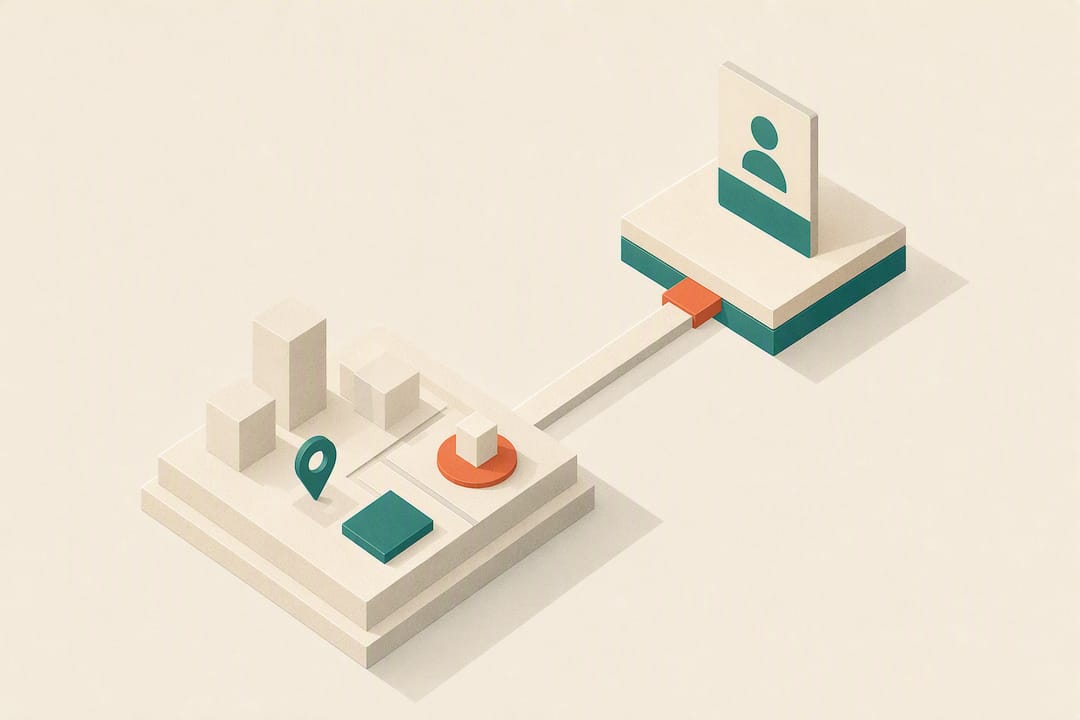
Open your tracker’s app, go to approved contacts or sharing settings, add the one person by email or phone number, and set their permission to view-only. They’ll see the live location on the map once they accept, and you keep full control to revoke that access anytime from the same menu.
TL;DR:
- Most trackers require the recipient to accept an invitation and be signed into the correct account with current app version for location sharing to work.
- Battery saver settings, coverage gaps, or unaccepted invites are common reasons why a person may not see live location updates.
- Always set permissions to view-only, turn on multifactor authentication, and review device permissions before sharing to enhance privacy and security.
- Revoke access promptly after the temporary need ends to minimize unnecessary shared accounts and reduce security risks.
- Kin One offers a one-time purchase option for sharing with up to five contacts, without ongoing subscription fees or advertising concerns.
Kinwatchdog
Share Location Without Monthly Fees
Kin One lets families monitor kids, pets, and parents on one map, with sharing for up to five contacts and no ongoing subscription fees.
Table of Contents
- How Do I Give One Person Live-View Access?
- Privacy and Security Checklist Before You Share
- Why Can’t the Invited Person See the Location?
- A Babysitter, a Dog, and One Lesson About Access
- Kin One: Share Your Tracker With One Person, No Subscription Required
- Sources
- FAQ
How Do I Give One Person Live-View Access?
Every family GPS tracker handles this a little differently, but the core sequence is the same across most apps. You’re not sharing your own phone’s location here. You’re granting a single approved contact permission to see where your tracked device (a kid’s tracker, a pet collar, a senior’s wearable) actually is, in real time.
Here’s the process, step by step:
- Sign in and select the device. Open the app and tap the specific tracker profile, not the account home screen. If you’re managing more than one device (a kid and a dog, say), this matters, because permissions in most apps are set per device, not per account.
- Find the sharing or approved contacts section. Look for wording like “Family,” “Approved Contacts,” or “Sharing Settings.” This is usually a separate tab from the main map view.
- Add the contact. Enter their email address or phone number, or generate a QR code if the app supports invite-by-scan. Some platforms, including Google’s Family Link setup flow, walk through similar pairing steps for supervised accounts, which is a useful reference if you’ve never set up shared access before.
- Choose view-only permission. This is the setting that matters most. You want them to see the dot on the map, not to manage settings, add other contacts, or pull historical routes unless you specifically intend that.
- Send the invite and wait for acceptance. The recipient gets a notification or link. They’ll need to accept it and, depending on the app, may need to create an account or download the companion app themselves.
- Test it. Ask them to open the map and confirm the location matches where the device actually is, within a reasonable margin.
A few practical notes make this smoother:
- Name the contact something specific inside the app, like “Grandma, view only” or “Dog walker, weekdays.” Vague labels like “Contact 1” get confusing fast once you’ve added a few people.
- Confirm the recipient’s location updates within a few minutes of the device moving. If the dot is frozen, something in the setup didn’t take.
- Revoking access takes the same number of taps as granting it. Go back to the approved contacts list, select the person, and remove or downgrade their permission. There’s no waiting period on most trackers, no phone call to customer support required.
Pro Tip: Send yourself a test invite from a second email address before you send the real one. It takes two minutes and catches broken invite links before your babysitter is standing outside confused.
Privacy and Security Checklist Before You Share
Roughly 80% of parents already track their kids’ locations in some form, according to a survey cited by Consumer Reports’ GPS tracker analysis. That same investigation found privacy protections vary a lot across devices. Some trackers store messages without encryption, and some skip multifactor authentication entirely on the account that controls sharing.
That’s the real risk here. It’s not that one extra person can see a dot on a map. It’s what else that account setup might be exposing without you realizing it. Before you send an invite, run through this:
- Turn on multifactor authentication for the account that manages sharing, not just the login you use daily.
- Set the new contact’s permission to view-only, and check whether the app has any features you don’t need, like ad personalization or in-app messaging, and turn those off.
- Review device-level permissions: does the app actually need microphone or contacts access to show a location? Usually not, and reporting on kids’ GPS trackers recommends stripping those down.
- Delete old route history periodically if the app stores it, and check how long it retains data by default.
- Avoid trackers that lean on targeted advertising as part of their business model. Consumer Reports specifically flags this as a red flag worth screening for.
None of this is complicated, but it’s easy to skip when you’re focused on just getting the share to work. Experts who cover this space consistently say the technology settings matter less than the conversation you have with the person being tracked. One safety writeup on trackers for children puts it plainly: tell the tracked person a device is on, and tell them who can see it.
Pro Tip: Keep a running note, even a simple one in your phone, of exactly who has access to which tracker and when you granted it. Six months from now you won’t remember if Aunt Carol still has view access to your dog’s collar.
Why Can’t the Invited Person See the Location?
Almost every access problem traces back to one of five things. Work through this list before you assume the tracker itself is broken.
- The invite was never accepted. Check whether the recipient actually confirmed the invitation. A pending invite looks identical to an active one from your side of the screen, but the other person still sees nothing.
- Wrong account or app version. Confirm they’re signed into the account you actually invited, especially if they have multiple emails, and that they’re running a current version of the app.
- Location services are off on their end. This sounds backward, since you’re viewing your device, not theirs, but some apps require location permissions on the viewer’s phone too, to show the map correctly.
- Battery saver or background restrictions are blocking updates. This is one of the most common culprits. Disabling battery optimization for the tracker app and watching for an update over a 5 to 10 minute window is the fastest diagnostic.
- Coverage gaps. GPS trackers depend on cellular or Wi-Fi connectivity to relay position. A dead zone in a basement or rural area delays the update, it doesn’t break the share.
If none of that fixes it, revoke the invite and re-send it. A corrupted account pairing is more common than most apps let on, and starting fresh often resolves it faster than troubleshooting the broken link. Testing with a second, temporary contact can confirm whether the problem is your account setup or theirs.
For supervised accounts specifically, Google’s Family Link documentation notes that only one device’s active location may display for a child at a time, which explains a lot of “why does this look wrong” confusion when a kid has more than one device signed in.
A Babysitter, a Dog, and One Lesson About Access
The clearest use case I’ve seen for single-person sharing isn’t a full-time family setup. It’s temporary: a babysitter needs to know where a kid is for one evening, a dog walker needs the collar’s location for an afternoon, nothing more.
Grant view-only access right before they arrive, name the contact something obvious, and revoke it the moment the job ends. Don’t leave standing access active for people who only need it occasionally. It’s not because anyone did anything wrong. It’s because the fewer accounts sitting on your sharing list, the fewer things you have to remember and audit later.
Test the invite before you actually need it. A location share that fails during a real emergency is worse than no tracker at all.
— Louis
Kin One: Share Your Tracker With One Person, No Subscription Required
If you’re setting up sharing for the first time, the account structure you choose matters as much as the app itself. Kin One is built around exactly this scenario: a one time purchase of $129.99 puts kids, pets, and parents on a single map, with up to five approved contacts and no monthly fees eating into your budget every time you add someone new.
The approved contact system lets you grant view-only access to one person, such as a co-parent, grandparent, or dog sitter, and revoke it whenever the situation changes. Privacy controls include route deletion and visibility settings you manage yourself, so the data footprint stays as small as you want it. There’s no ad-driven business model behind it, and no recurring bill showing up every month for a feature you already paid for once. Check the product page for current specs and to join the families already lined up for launch.
Sources
- Consumer Reports: GPS kid trackers — privacy and security analysis
- Safety vs. privacy: what parents should know about GPS trackers for children
FAQ
Can I Share My Tracker’s Location With Just One Person?
Yes. Most family GPS trackers let you add a single approved contact and grant them view-only access without sharing the account with anyone else. Kin One supports up to five approved contacts, so you can start with one and add more later.
How Do I Revoke Someone’s Access to My Tracker?
Go to the approved contacts or sharing settings in your app, select the person, and remove or downgrade their permission. Most apps process this instantly, with no waiting period or support call needed.
Why Isn’t the Location Updating for My Approved Contact?
The most common causes are battery saver settings blocking background updates, an unaccepted invitation, or a coverage gap where the device has no cellular or Wi-Fi signal. Disabling battery optimization for the app and testing over a short window usually reveals the issue.
Does Kin One Charge a Monthly Fee for Location Sharing?
No. Kin One is a one time purchase at $129.99, listed on the product page, with no ongoing subscription for live updates or approved contact access.
Is It Safe to Share My Tracker’s Location With Someone Else?
It’s safe when you set permissions to view-only, enable multifactor authentication on the managing account, and limit unnecessary app permissions like microphone or contacts access. Consumer Reports recommends checking these settings specifically, since privacy protections vary widely across products.